

Knowledge Retrieval
Retrieve relevant information from your knowledge base during task execution.How It Works
Xagent uses RAG (Retrieval-Augmented Generation) to enhance responses with knowledge from your knowledge base:- Understand Request - Xagent analyzes your question
- Search Knowledge Base - Finds relevant documents
- Retrieve Context - Extracts matching content
- Generate Response - Combines knowledge with reasoning
Using Knowledge in Tasks
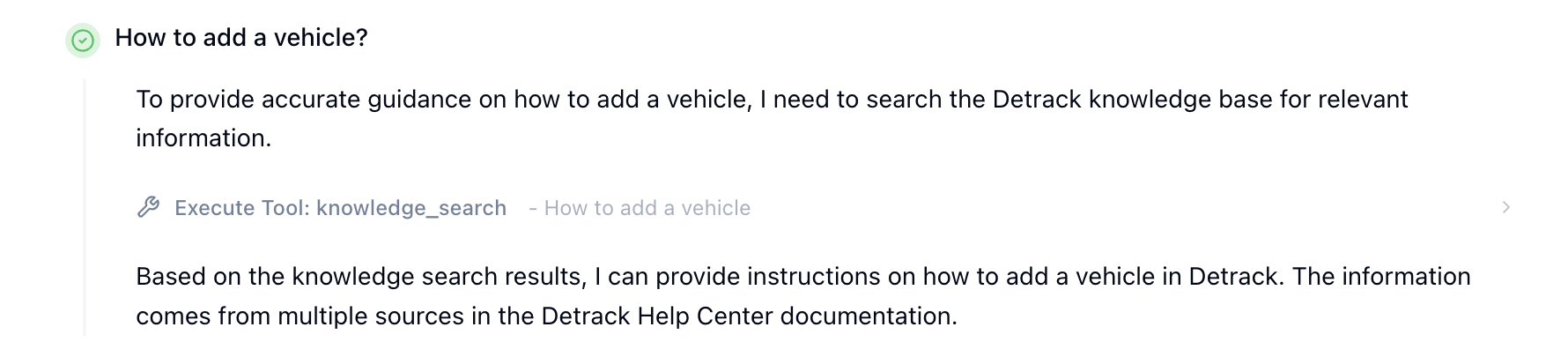
Natural Language Queries
In regular tasks, simply describe what you want to know in natural language: Examples:- Automatically search relevant knowledge bases
- Find matching documents
- Extract relevant information
- Provide answers based on retrieved content
When Knowledge is Used
Xagent automatically uses knowledge base when:- Your question references specific information
- You ask to search or look up documentation
- You mention knowledge base, documents, or manuals
- You ask for company policies, procedures, or guidelines
Using Knowledge in Agents
Configuring Agent Knowledge
When building an agent, you can specify which knowledge bases to use:- Go to Build page
- Create or edit an agent
- In the Knowledge Bases section:
- Select one or more knowledge bases
- Agent will only search these knowledge bases
- Useful for domain-specific agents
- Customer Support Agent - Attach product documentation and FAQ knowledge bases
- HR Assistant - Attach employee handbook and policy knowledge bases
- Technical Support Agent - Attach troubleshooting and API documentation
Agent Behavior
When an agent has knowledge bases configured:- Agent automatically searches when questions match the domain
- Only searches specified knowledge bases
- Provides answers based on retrieved knowledge
- Cites sources when available
Search Options
Search Types
Hybrid Search (Default)- Combines dense (vector) and sparse (keyword) search
- Best balance of relevance and coverage
- Recommended for most use cases
- Pure vector similarity search
- Better for semantic understanding
- Good for conceptual queries
- Pure keyword matching
- Better for exact terms
- Good for specific phrases or names
Search Parameters
Top K (Default: 5)- Maximum number of results per knowledge base
- Higher values = more results, slower
- Adjust based on your needs
- Minimum relevance threshold (0.0 - 1.0)
- Filters out low-quality matches
- Higher = stricter filtering
Search Results
What You Get
When Xagent searches the knowledge base, results include: Content- Relevant text passages from documents
- Document source and name
- Section or page reference
- Relevance score
- Knowledge base name
- Document information
- Source document name
- Page or section reference
- Link to original document (if available)
Interpreting Results
High Score (0.7+)- Very relevant to your query
- Directly addresses the question
- Primary source for answer
- Somewhat relevant
- Contains related information
- May need additional context
- Loosely related
- General background information
- Use with caution
Tips for Better Retrieval
For Users
Be SpecificFor Agent Builders
Select Relevant Knowledge Bases- Only attach knowledge bases the agent needs
- Too many = slower, less accurate
- Group related documents together
- Separate knowledge bases by domain
- Product docs vs. policies vs. procedures
- Makes results more relevant
- Remove outdated documents
- Add new information regularly
- Re-upload when content changes significantly
For Knowledge Base Managers
Quality Content- Well-formatted documents process better
- Clear structure and headings
- Remove duplicates and outdated content
- Smaller chunks = more precise results
- Larger chunks = more context
- Adjust overlap for your use case
- Monitor search quality
- Update content regularly
- Remove failed or duplicate documents
Troubleshooting
No Results Found
Possible reasons:- Knowledge base doesn’t contain relevant information
- Search terms don’t match document content
- Min score threshold too high
- Wrong knowledge base selected
- Try different search terms
- Check knowledge base has relevant documents
- Lower min score threshold
- Search broader domain
Irrelevant Results
Possible reasons:- Documents too generic
- Chunk size too large
- Knowledge base contains unrelated content
- Search query too vague
- Be more specific in your query
- Filter knowledge base content
- Adjust chunk size
- Use domain-specific terminology
Slow Search
Possible reasons:- Too many knowledge bases
- Large knowledge base size
- High top_k value
- Slow embedding model
- Reduce number of knowledge bases
- Lower top_k value
- Use faster embedding model
- Clean up knowledge base
Agent Not Using Knowledge
Check:- Knowledge bases are attached to agent
- Agent has
knowledgetool category enabled - Query matches knowledge base domain
- Knowledge base contains relevant content
- Test agent with knowledge-specific questions
- Check agent configuration in Build page
- Confirm knowledge bases are published
Next Steps
- Knowledge Base Overview - Learn about knowledge features
- Uploading Knowledge - Add documents to your knowledge base
- Embedding Models - Configure vector embeddings
- Building Agents - Create agents with knowledge